

If a site was installed over HTTP, or the URLs saved in its database still start with http://, visitors keep landing on the insecure version even though a certificate is installed. Forcing a redirect sends everyone to https:// instead.
Option 1: the cPanel switch #
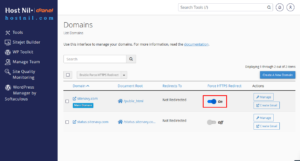
Go to cPanel > Domains and turn on Force HTTPS Redirect for the domain. This is the safest method, because cPanel writes the rule for you and removes it cleanly if you switch it off.
Option 2: a rewrite rule #
If the switch is not available on your plan, add the rule yourself. Go to cPanel > File Manager, open the folder where the website lives, right-click .htaccess, choose Edit, and add this at the top of the file:
RewriteEngine On
RewriteCond %{HTTPS} !=on
RewriteRule ^(.*)$ https://%{HTTP_HOST}%{REQUEST_URI} [L,R=301,NE]
Place it above any WordPress rewrite block, otherwise the redirect never runs.
Fixing mixed content #
After the redirect works, some pages may still show a broken padlock. That means the page itself is loading an image, script or stylesheet over HTTP. Adding this header asks the browser to upgrade those requests automatically:
Header always set Content-Security-Policy "upgrade-insecure-requests;"
It is a useful patch, but the proper fix is to correct the URLs at source.
WordPress: update the saved URLs #
A redirect alone does not change what is stored in the database. In WordPress, go to Settings > General and make sure both WordPress Address and Site Address start with https://. Old links inside posts and options usually need a search and replace across the database as well.
Notes #
- Install the SSL certificate first. Forcing HTTPS before a valid certificate exists gives every visitor a security warning.
- Clear any caching plugin and your CDN cache afterwards, or the old HTTP version may keep being served.
- Copy the file before editing it. One wrong character in
.htaccessreturns a 500 error for the whole site. - If you cannot see
.htaccessin File Manager, open Settings in the top right corner and tick Show hidden files.