
You change the cPanel password from the client area, not from inside cPanel itself. It takes about a minute.
Steps #
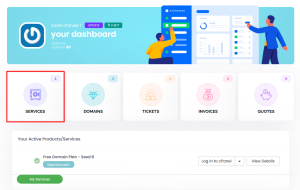
1. Log in to the client area and open Services.
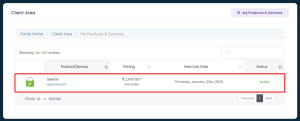
2. Click anywhere on the service you want to change.
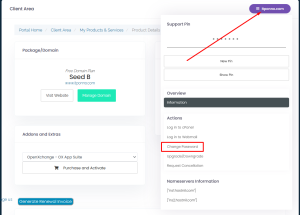
3. Open the menu at the top right, which shows your domain name, and choose Change Password.
4. Type the new password in New Password, then type it again in Confirm New Password.
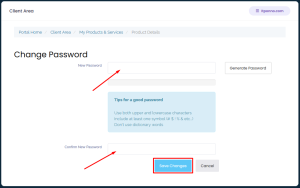
5. Click Save Changes. You can log in to cPanel with the new password straight away.
Worth knowing #
- Use a long, unique password. cPanel gives full control of your hosting account, so a weak one is worth protecting against — the password generator on the same page produces a strong one for you.
- Changing the cPanel password does not change your FTP or email passwords. Those are managed separately inside cPanel.
- If you are locked out because of repeated failed logins, the server firewall has blocked your IP address rather than your password being wrong. Find your address on our IP checker and send it to support so we can lift the block.