
This guide is for Budget Cloud Hosting, which uses our custom control panel. If your hosting uses cPanel, follow creating email on cPanel hosting instead — the mail server settings are different.
Your hosting lets you create email addresses on your own domain, such as info@yourdomain.com. This guide covers creating an address, then connecting it to Outlook or another mail app.
Creating the address #
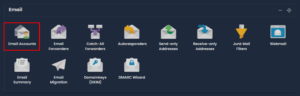
1. Log in to your control panel and click Email Accounts under the Email section.
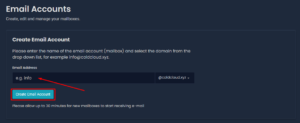
2. Enter the address you want, set a password, and click Create Email Account.
3. Allow up to 30 minutes before using it. The new mailbox has to be published to our load balancers first, so a mail app set up immediately may fail to connect. This is normal and does not mean anything is wrong.
Changing the password later #
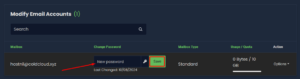
Use the same Email Accounts page.
Reading your mail #
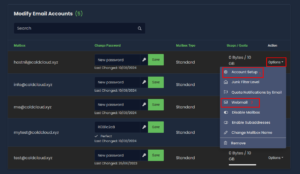
Click Options next to the address, then Account Setup, to see the connection settings and the webmail link. Webmail lets you read your mail in a browser with nothing to install.
Automatic setup in Outlook #
- In Outlook, open the File tab.
- Under Account Information, choose Add Account.
- Enter your name, email address and password, then click Next.
- Click Finish.
Manual settings #
If automatic setup fails, choose manual setup and enter these:
| Account type | IMAP |
| Incoming mail server | imap.stackmail.com |
| Incoming port (IMAP) | 993 |
| Incoming encryption | SSL |
| Outgoing mail server | smtp.stackmail.com |
| Outgoing port (SMTP) | 465 |
| Outgoing encryption | SSL/TLS |
| Username | your full email address |
| Password | your mailbox password |
Two settings people miss #
- Under More Settings > Outgoing Server, tick My outgoing server (SMTP) requires authentication. Without it you can receive mail but not send it — the single most common cause of a half-working mailbox.
- Sign in with your full email address as the username, not just the part before the @.
If it still will not connect #
- Wait the full 30 minutes after creating the mailbox before trying again.
- Check the password by signing in to webmail first. If webmail works, the mailbox is fine and the problem is in your mail app.
- Some networks block port 465. Try 587 for outgoing mail with STARTTLS.
- Repeated failed logins can get your IP address blocked by the firewall. Find your address on our IP checker and send it to support.
Exact menu names vary between Outlook versions, but the settings above stay the same.