

An SSL certificate encrypts the connection between your visitors and the server, and gives you the padlock in the browser address bar. Browsers now mark sites without one as Not secure, so a certificate is no longer optional for any site that expects to be taken seriously.
Every domain and subdomain on our cloud hosting is enrolled in AutoSSL automatically, free with every package. As soon as the domain points at us — through our nameservers or an A record — the system requests a certificate and installs it for you. There is nothing to buy and nothing to configure.
This normally happens within about 5 hours of the domain starting to point at us. If it takes longer, or the certificate is not working, you can trigger it manually.
Issuing a certificate manually #
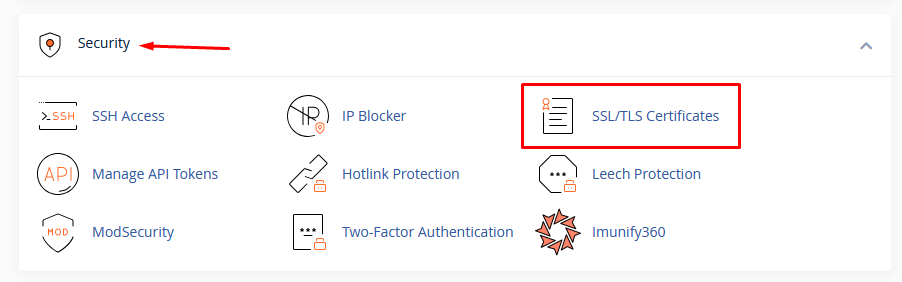
1. Log in to cPanel. Under Security, click SSL/TLS Certificates.
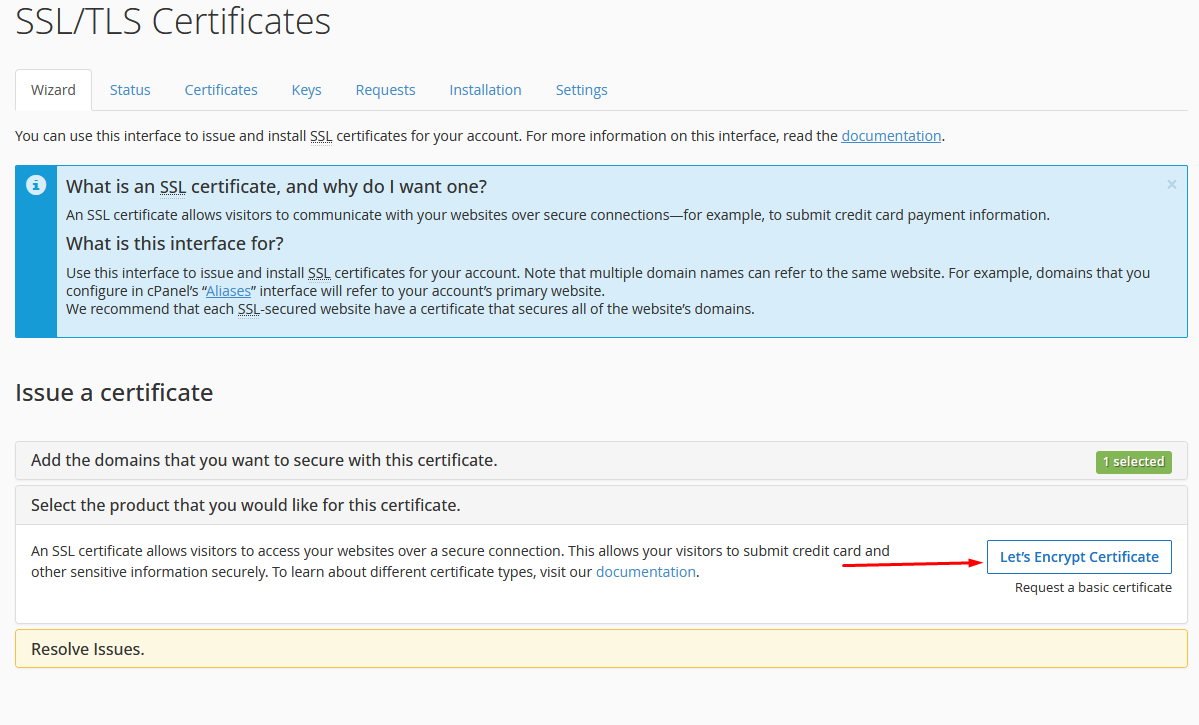
2. On the Wizard tab, scroll to Issue a certificate and click Let’s Encrypt Certificate. This is the free option — use Request a basic certificate only if you already have a paid certificate to install instead.
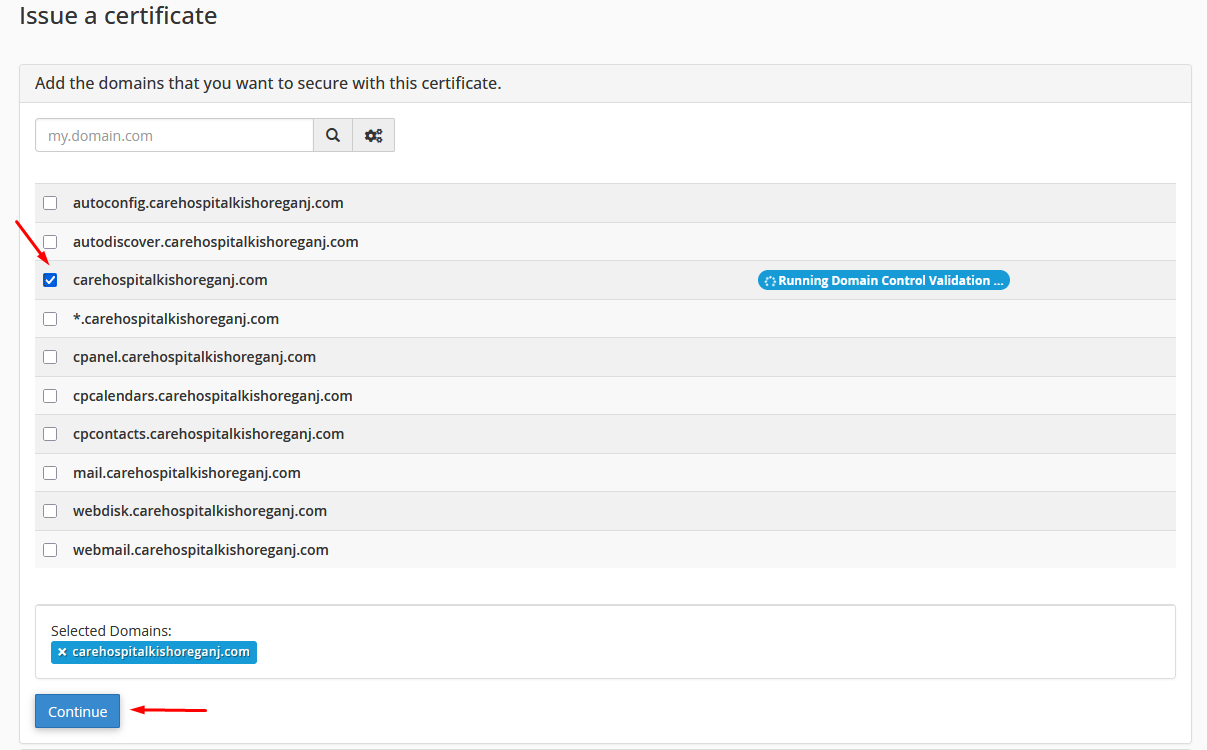
3. Tick the domain (and any subdomains) you want the certificate to cover, then click Continue.
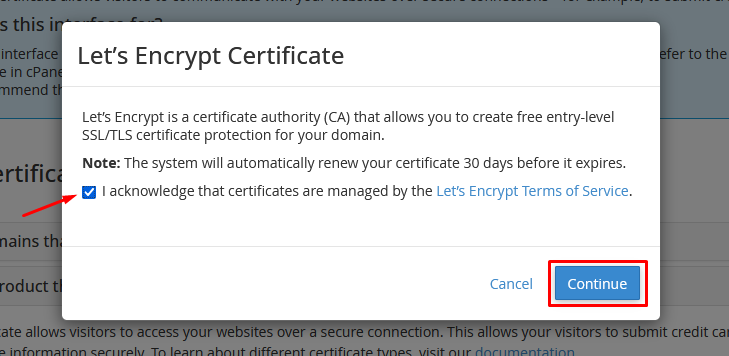
4. Read the note about automatic renewal, tick I acknowledge that certificates are managed by the Let’s Encrypt Terms of Service, and click Continue.
The certificate is issued and installed within a minute or two. cPanel renews it automatically 30 days before it expires, so once this is done there is nothing further to do.
If the certificate will not issue #
Both automatic and manual issuance have to prove the domain belongs to this account first, and there are only a few reasons that check fails:
- The domain is not pointing at us yet. Check the nameservers or A record first. Everything else is a waste of time until this is right.
- Cloudflare proxy is on. If the orange cloud is enabled, the validation request never reaches our server. Set the record to DNS only, issue the certificate, then turn the proxy back on.
- A redirect or a rewrite rule is in the way. A rule in
.htaccessthat redirects everything can block the validation file. Try again with the redirect temporarily removed. - The site is password protected or behind a maintenance mode plugin that blocks all requests.
Once the certificate is installed, send visitors to the secure version — see Force redirect to HTTPS.
If you are stuck, contact us and we will look at it for you.