
If your control panel has no WordPress tool, the site address can be changed directly in the database with phpMyAdmin. Two values control it: siteurl and home.
1. Back up the database first #
This is not optional. A wrong value here can lock you out of wp-admin completely. Take a backup from the control panel Backup / Restore section before touching anything.
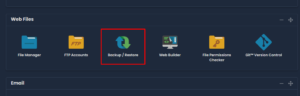
2. Open phpMyAdmin #
- Log in to your control panel.
- Go to Web Tools and open phpMyAdmin.
- If you are not sure which database belongs to the site, open
wp-config.phpin File Manager and look at theDB_NAMEline.
3. Edit the two values #
- Select your database in the left-hand list.
- Open the options table. It usually ends in
_options, for examplewp_options. If the site was installed with a custom prefix, the start of the name will differ. - Find the rows where
option_nameissiteurlandhome. They are normally on the first page; if not, use the search tab. - Edit each one and replace the temporary address with your real domain, then save.
Get the format right #
Both values must be written exactly like this:
https://example.com
No trailing slash, no /wp-admin, and no www unless your site genuinely uses it. Use https only if the certificate is already active. Both rows must match each other.
4. Check the site #
Load the site and then /wp-admin. If you are redirected in a loop or see a blank page, the value is wrong — go back into phpMyAdmin and correct it, or restore the backup.
Links inside your content #
Changing these two rows fixes the site address, but old links and image paths saved inside posts still point at the temporary domain. Those need a search and replace across the database. A plugin such as Better Search Replace handles it safely, and you should take another backup before running it.